

If you’re constantly having problems with your Wi-Fi connection or if your Internet isn’t working as it should, know there’s a solution. In fact, about 40% of people using broadband have dealt with these issues including slow speeds, dropped connections, and difficulty connecting devices to the Internet. If you’re experiencing slow Wi-Fi speeds, you’re probably using the wrong channel. A wireless router sends and receives data across channels and can switch between them easily. If you’re using the same channel as all your neighbors, your speed may be slow. However, don’t worry because the speed of your Wi-Fi router increases if you change this now.
Your Wi-Fi router speed increases if you change this now!
How to change the Wi-Fi channel on any router
The issue of intervention
Wi-Fi connectivity issues in some homes may be caused by the large number of connected devices trying to access the Internet. If you live in an apartment or apartment complex with many users, you experience greater interference from signals coming from your neighbors’ homes.
There are several different types of intervention. The first is called co-channel interference, and this happens when you have too many devices trying to communicate on the same channel. Adjacent channel interference is the second type, and occurs when there is noise from overlapping channels. Finally, there’s interference from devices that aren’t connected to your Wi-Fi network, including household appliances like microwaves, cordless phones, and even old analog cameras.
Bands and channels
Most Wi-Fi routers transmit two bands: 2.4 GHz and 5 GHz. The 2.4 GHz band transmits lower-quality Wi-Fi that can travel farther, while the 5 GHz band transmits higher-quality Wi-Fi that is more susceptible to interference or interruption.
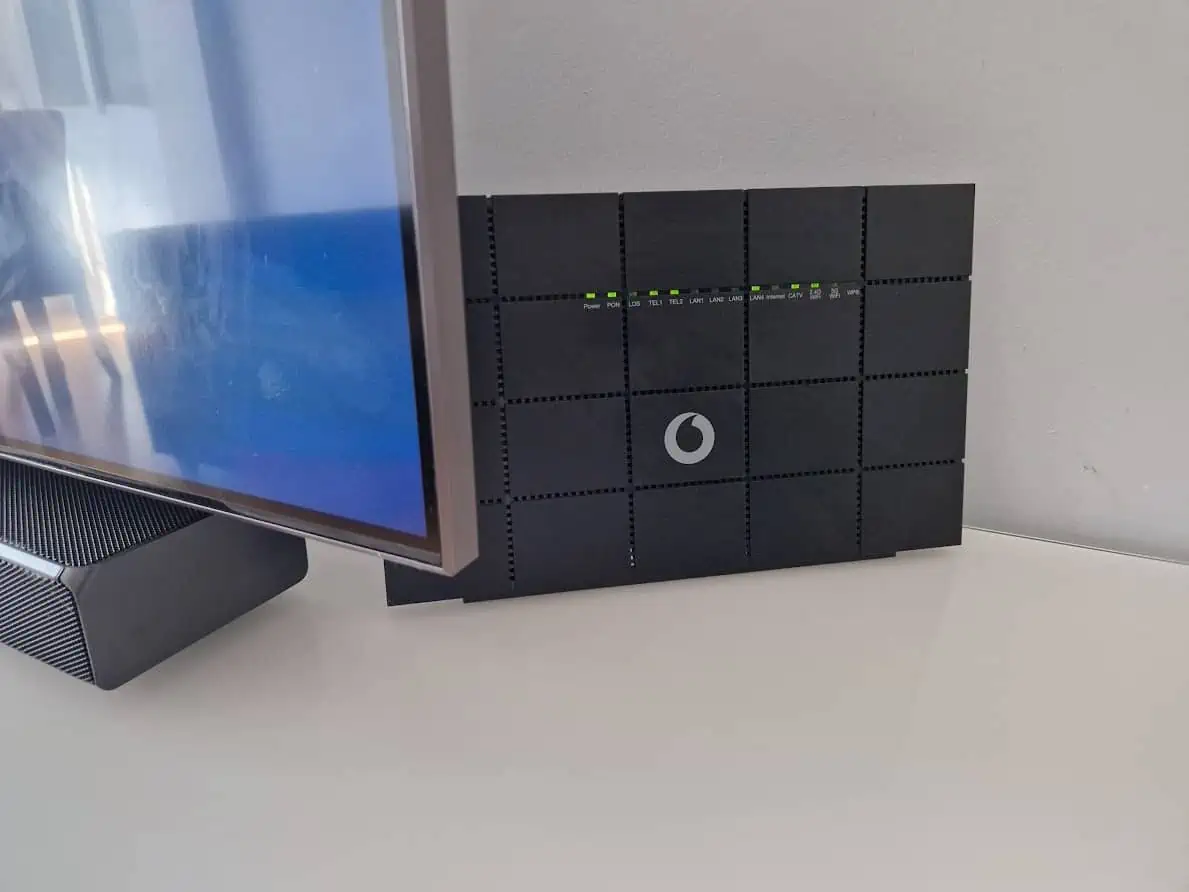
Dual-band routers are the most commonly used, but there are also tri-band routers that offer different combinations of bands, usually an additional 5GHz band or, as of 2020, an entirely new 6GHz Wi-Fi band.
However, as I mentioned above, within each Wi-Fi band there are a number of channels. The number of channels available depends on the Wi-Fi band you are using.
How many channels are there in the 2.4GHz Wi-Fi band?
The slower 2.4GHz Wi-Fi band has a maximum of 14 channels, although this varies depending on location. Furthermore, the entire 2.4GHz Wi-Fi bandwidth is only 100MHz, and operates from 2.4GHz to 2.5GHz. Each 2.4GHz Wi-Fi channel is 20MHz wide. However, there is significant overlap between each channel. Interestingly, there are only three Wi-Fi channels in the 2.4GHz band that don’t completely overlap: channels 1, 6, and 11.

Unfortunately, many other home devices also use the 2.4GHz spectrum to communicate, making the network full. Especially in buildings with many neighbors where everything ends up interfering.
For this reason, some routers come with an auto-detect feature that detects the clearest Wi-Fi channel and makes it available automatically.
How many channels does 5GHz Wi-Fi have?
The faster 5GHz Wi-Fi band covers a wider frequency range, extending from 5GHz to 5.8GHz, which means each channel is wider and, most importantly, there is no interference. Because the 5GHz band is wider as a whole, it has more channels than 2.4GHz Wi-Fi, in this case 20.
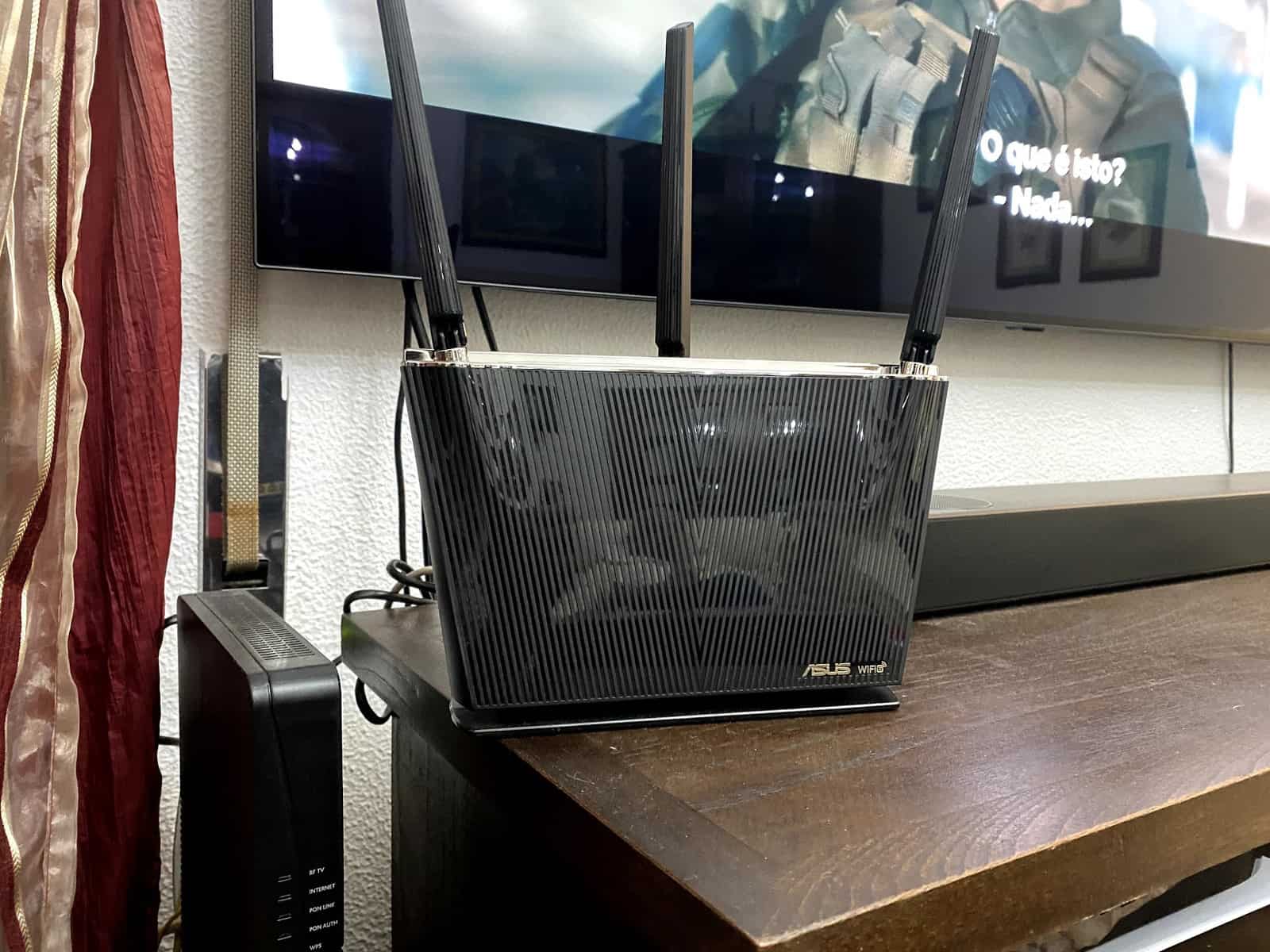
Because 5GHz channels do not overlap, interference is less likely to occur in areas with many neighbors. There are more individual channels for other Wi-Fi router owners and there are very few consumer devices that use 5GHz.
But there is another positive side. 5GHz Wi-Fi channels are not limited to 20MHz in the same way as 2.4GHz Wi-Fi channels. Alternatively, 5GHz Wi-Fi channels can be linked to adjacent channels to create one larger channel, allowing more data to flow through it.
How many channels does 6GHz Wi-Fi have?
For a long time, 2.4GHz and 5GHz Wi-Fi networks were the only bands available to consumers. That changed in 2020 with the launch of Wi-Fi 6E, which became an entirely new Wi-Fi band. However, it was only officially approved in December 2021.
Adding the 6GHz band dramatically increases your Wi-Fi network capacity, adding a new Wi-Fi band to explore. This in turn means creating 59 new 20 MHz channels. Since the 6GHz band can use the same channel bonding technology as the 5GHz band, we have 29 40MHz channels, 14 80MHz channels, and seven 160MHz channels.
In short, 6GHz Wi-Fi quadruples the space available for your Wi-Fi connection. Adding a brand new Wi-Fi band also reduces congestion.
switch over
If you’re looking to increase the speed of your Wi-Fi network, changing channels can provide even more speed. But there are two things you need to do first. The first is to detect the busiest and quietest Wi-Fi channels around you. This is done through an application that analyzes Wi-Fi signals. It is true that there are some routers that do this locally, but most commonly an application is required.
The Android app mentioned below is very good for this purpose.
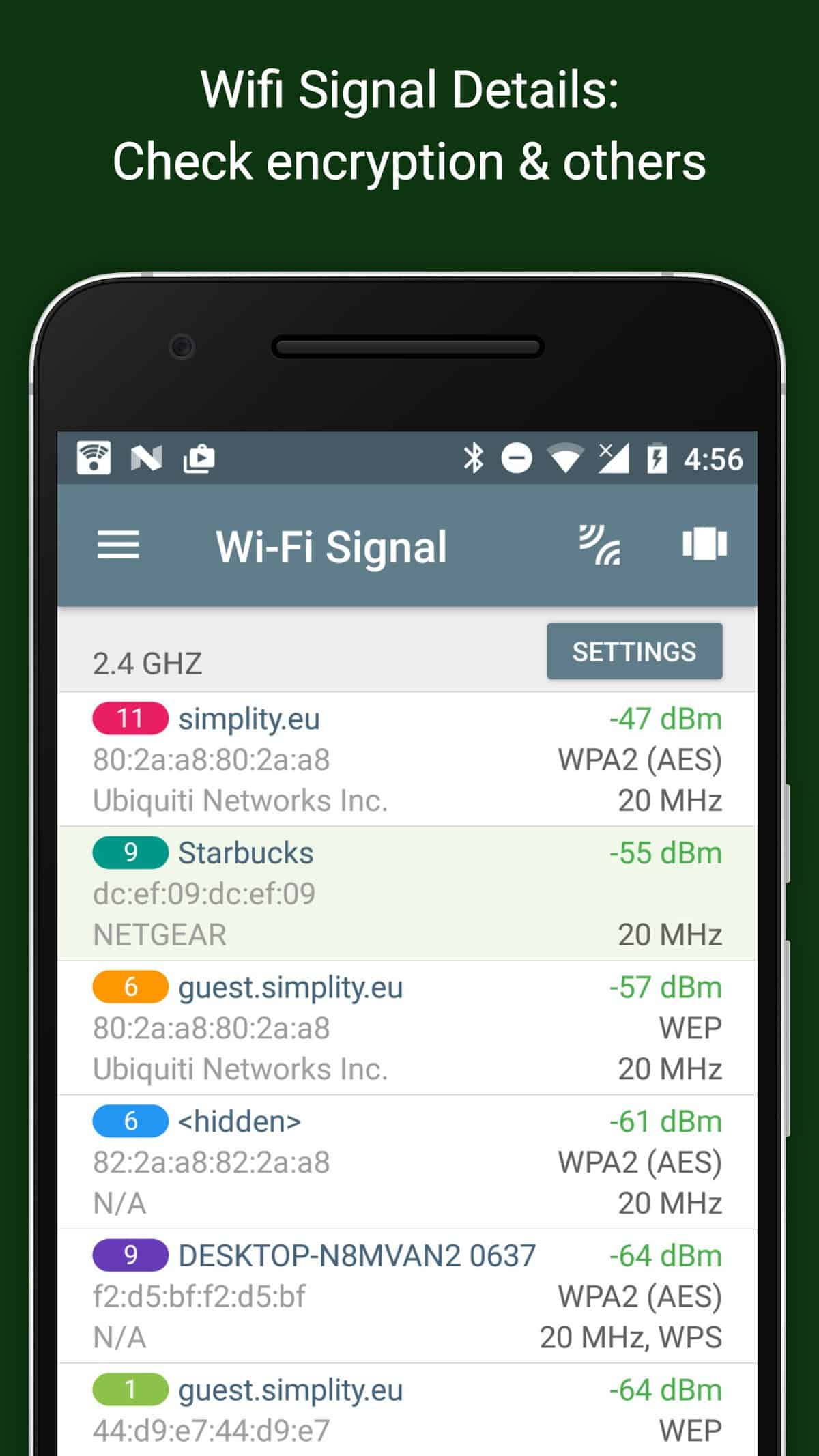
The second thing is to know the IP address of your Wi-Fi router. Without it, you will not be able to access your router to adjust the Wi-Fi channel settings. Once you have it, enter the IP address in the address bar from browser And press Enter. Then the page should appear sign in to the router and enter the credentials only. In some cases, if you don’t change them, they are included Router.
Now the instructions vary from router to router, but are usually like this.
Locate your Wi-Fi settings, which are usually found under Wireless, Wi-Fi, or Advanced settings.
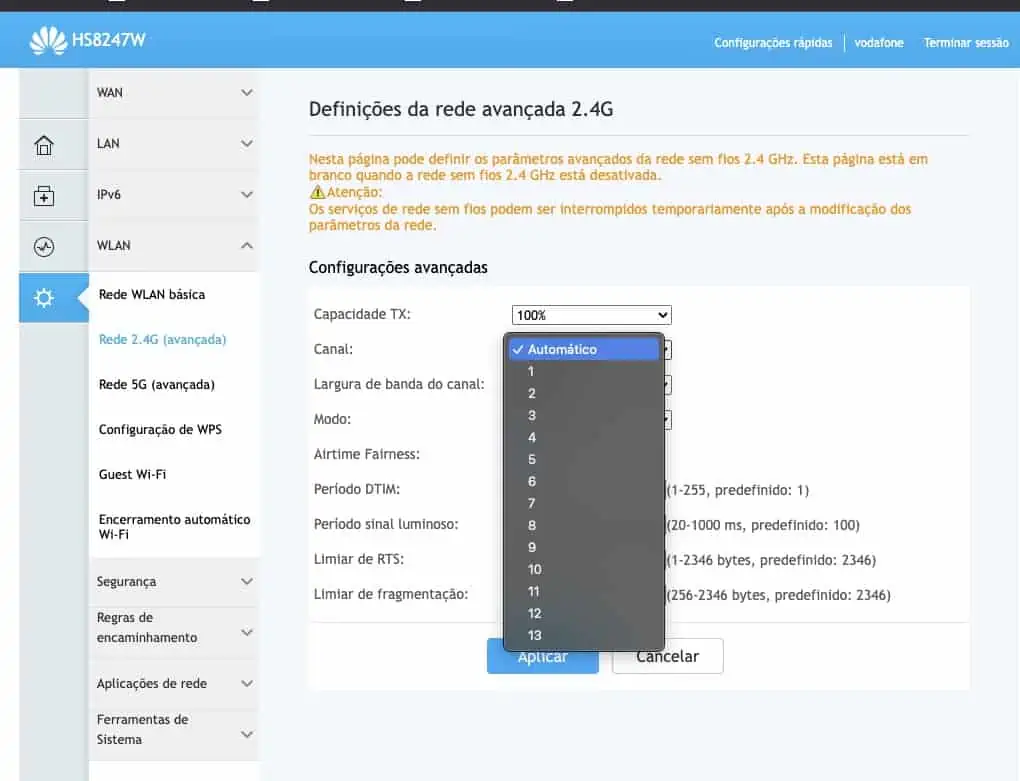
Locate 2.4GHz or 5GHz Wi-Fi options, then Wi-Fi Channel options.
This changes the channel on your Wi-Fi router and increases speed.

“Writer. Analyst. Avid travel maven. Devoted twitter guru. Unapologetic pop culture expert. General zombie enthusiast.”